From utilities to school tuition fees, we’ve got you covered
Abot-kayang bayarin sa favorite partners mo,pwedeng-pwede gamitang GCredit!


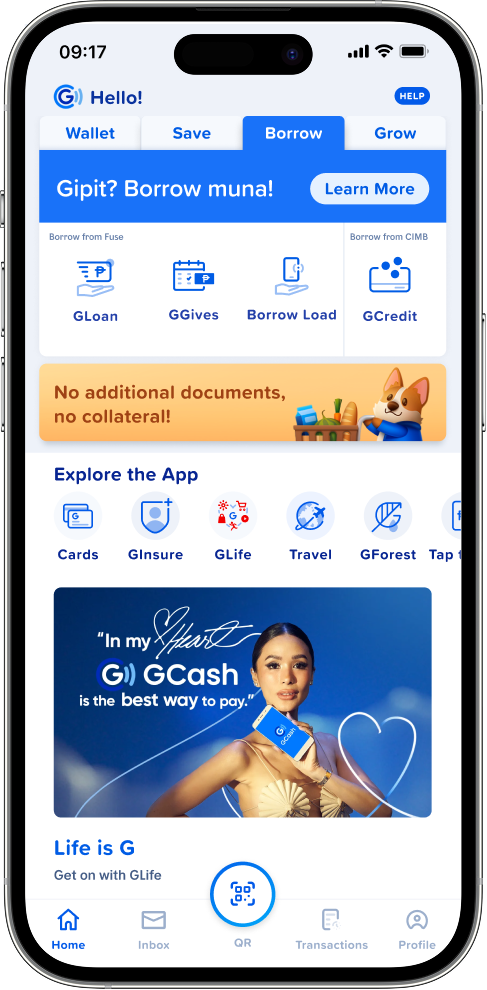
Open the GCash app and tap
Borrow on the dashboard.
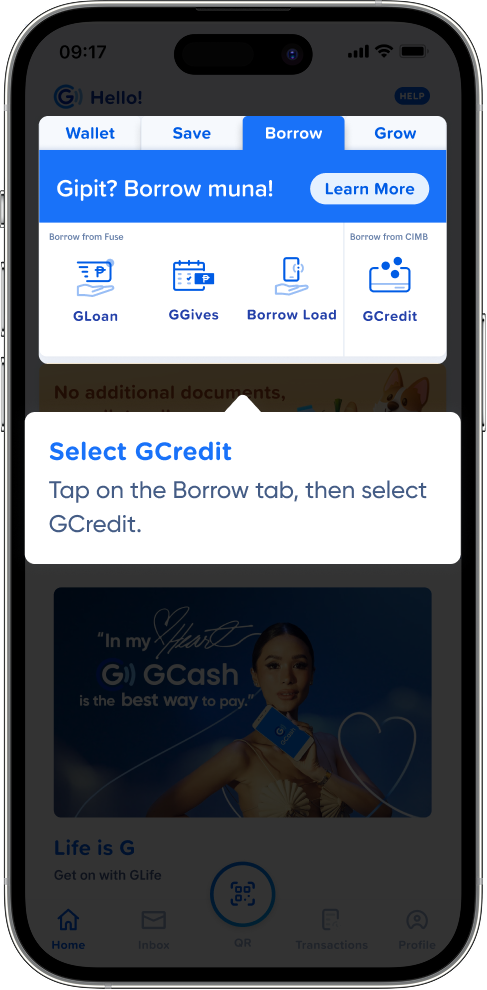
Tap on the Borrow tab, then select GCredit.
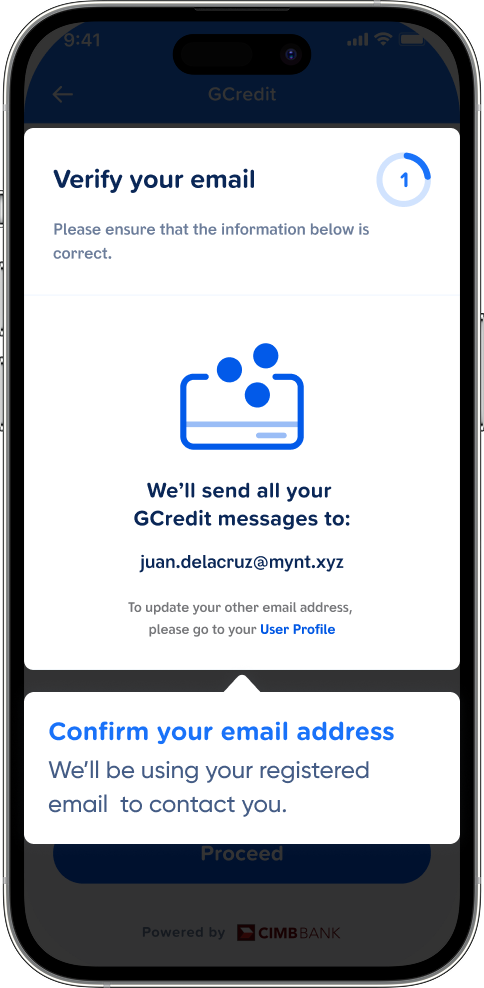
We’ll be using your registered email to contact you.
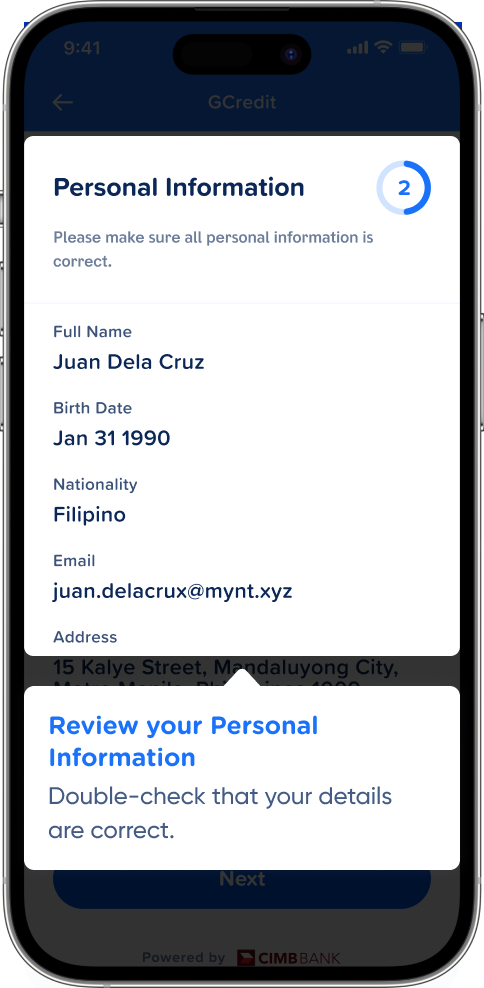
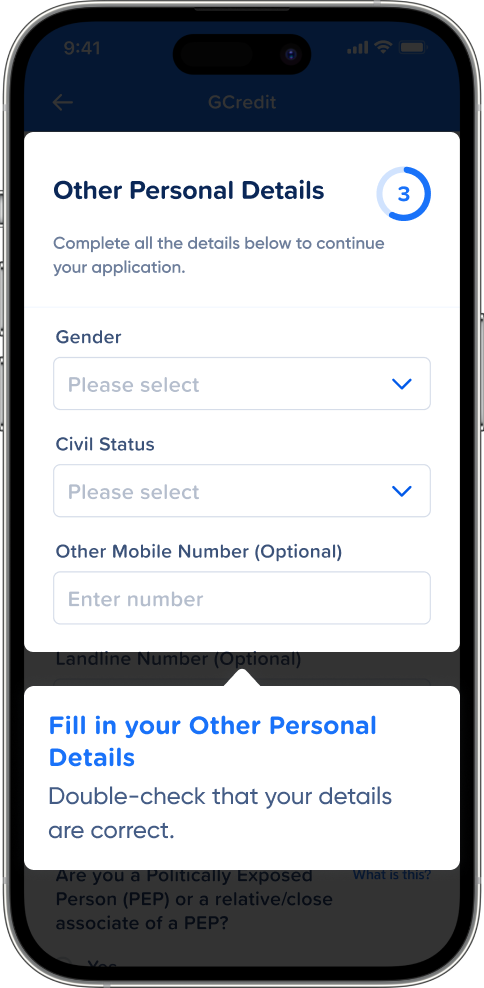
Double-check that your details are correct.
Double-check that your details are correct.
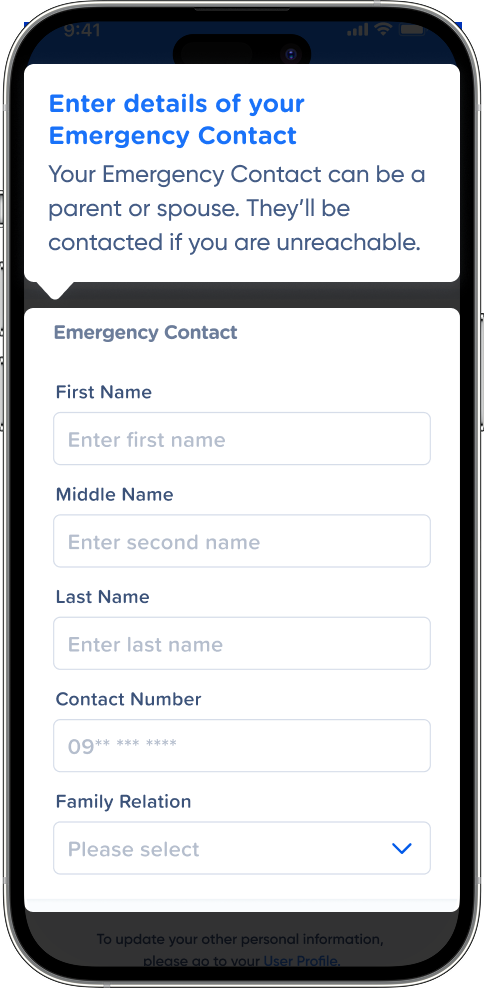
Your Emergency Contact can be a parent or spouse. They’ll be contacted if you are unreachable.
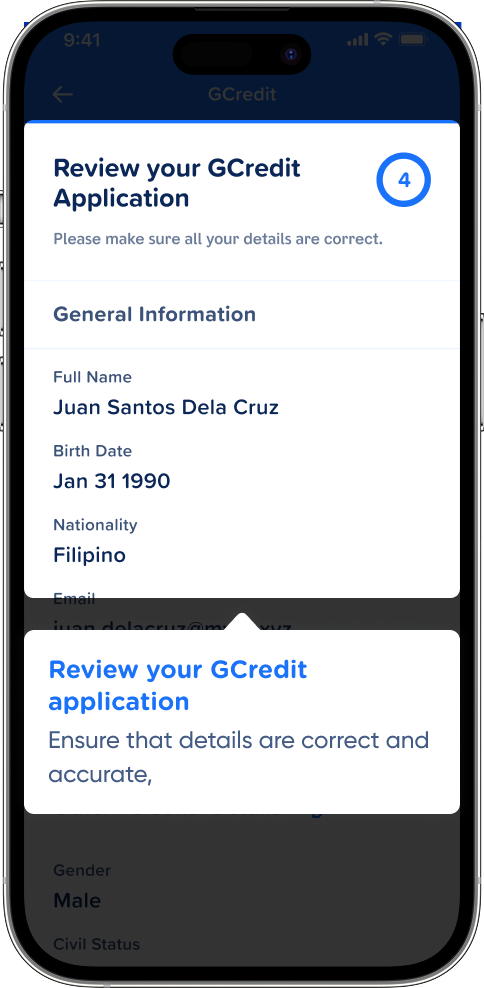
Ensure that details are correct and accurate,
We’ll let you know the status of your GCredit application via text.
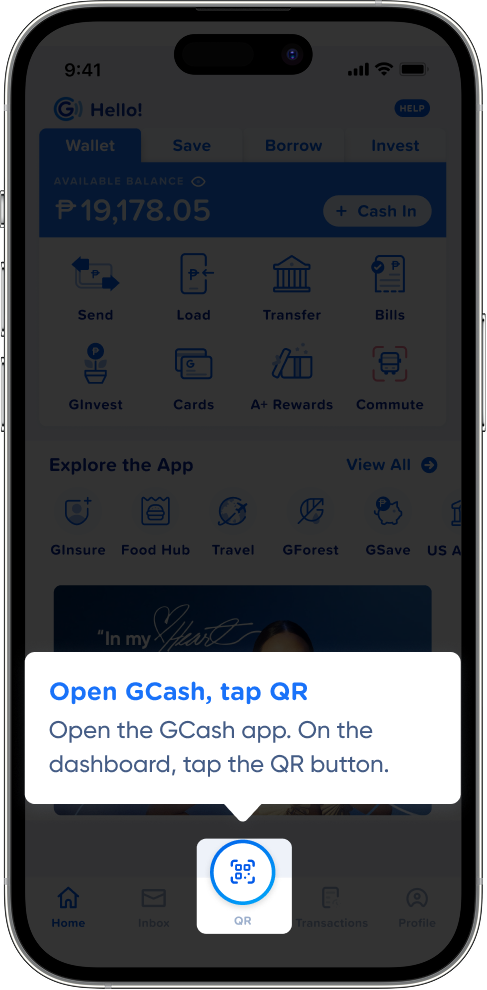
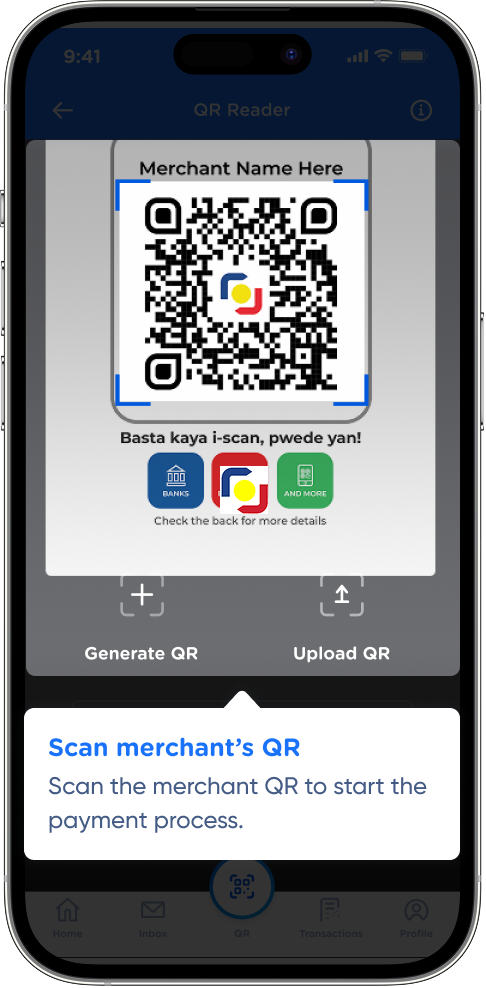
Open the GCash app. On the dashboard, tap the QR button.
Scan the merchant QR to start the payment process.
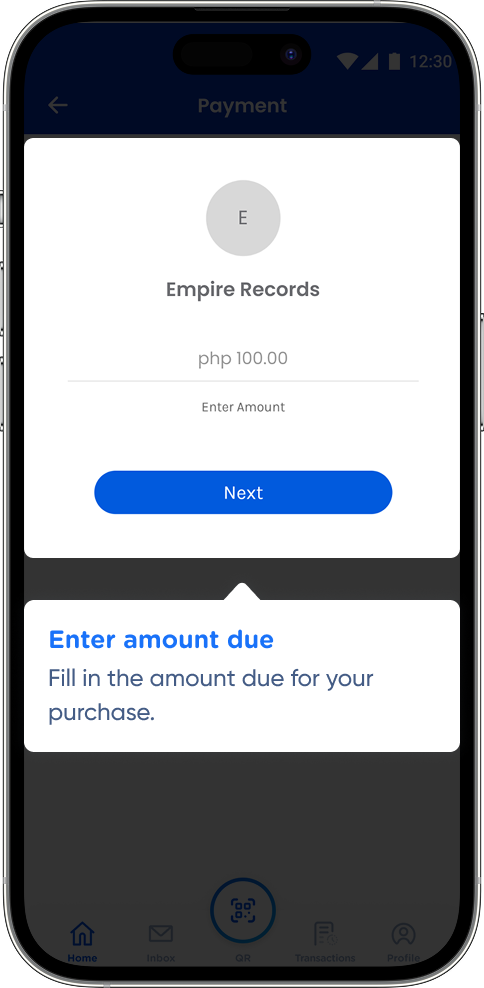
Fill in the amount due for your purchase.
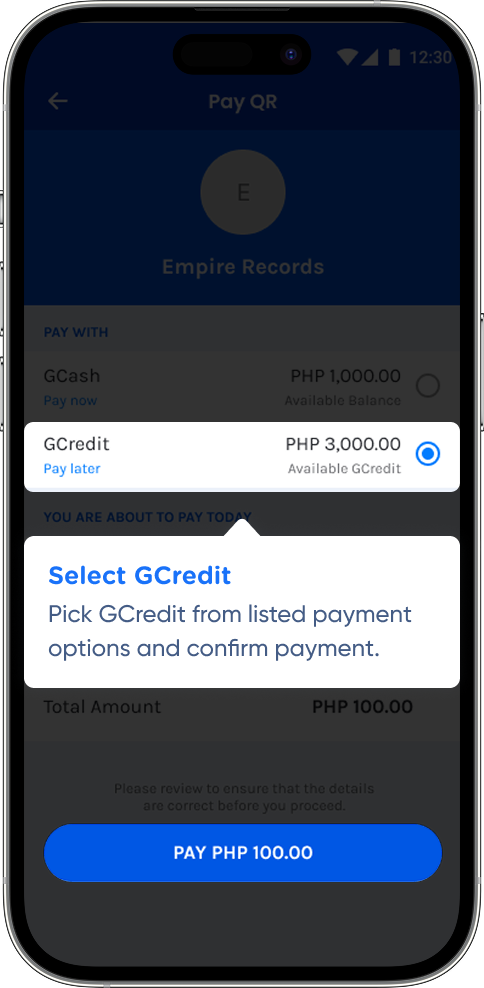
Pick GCredit from listed payment options and confirm payment.
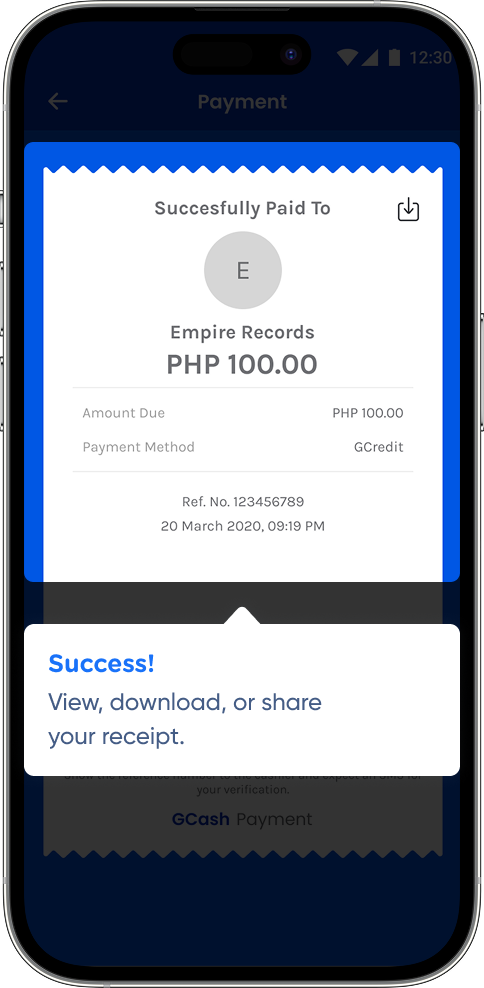
View, download, or share your receipt.
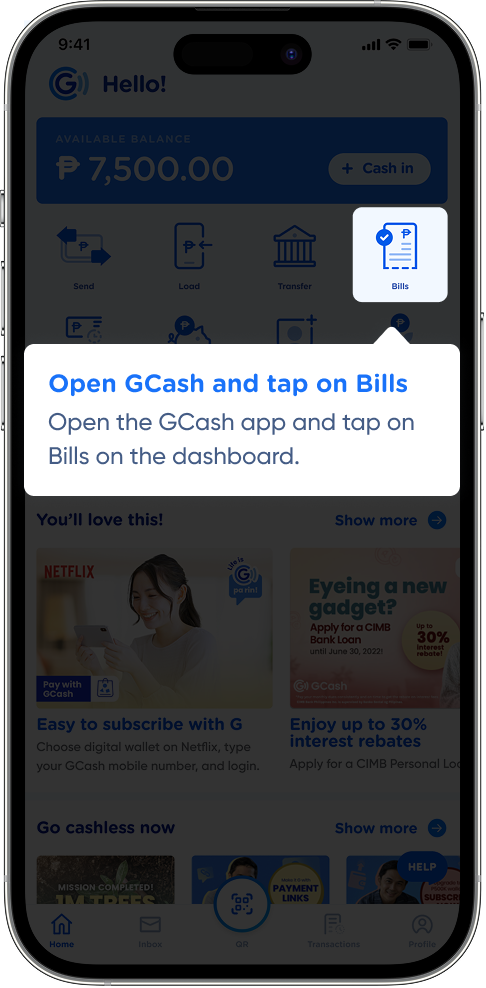
Open the GCash app and tap on Bills on the dashboard.
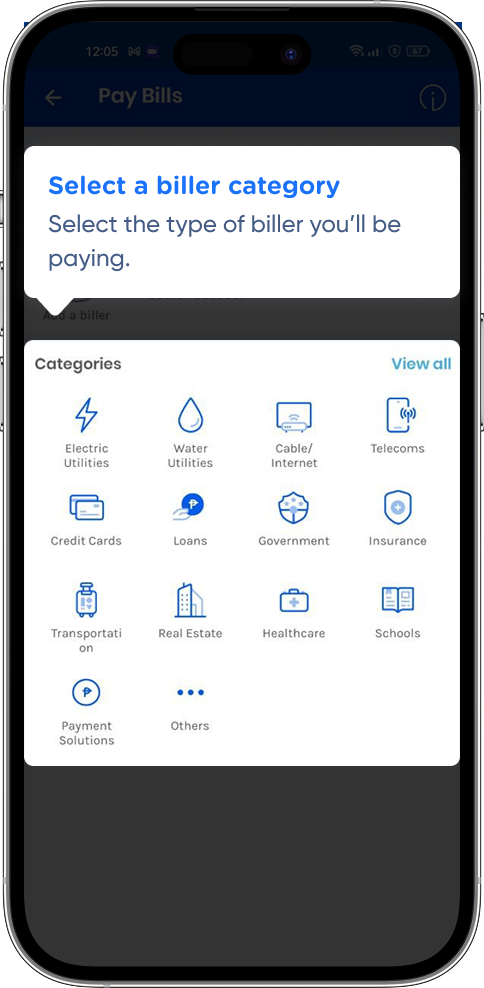
Select the type of biller you’ll be paying.
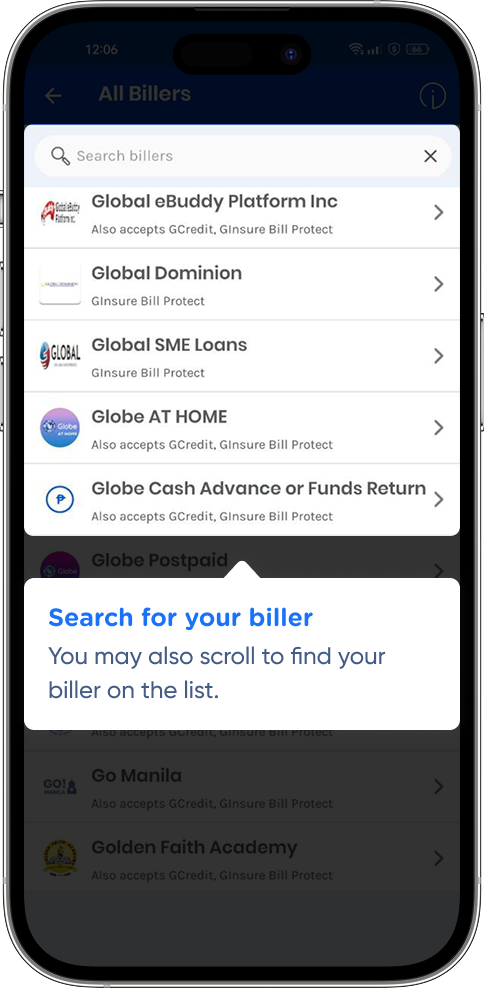
You may also scroll to find your biller on the list.
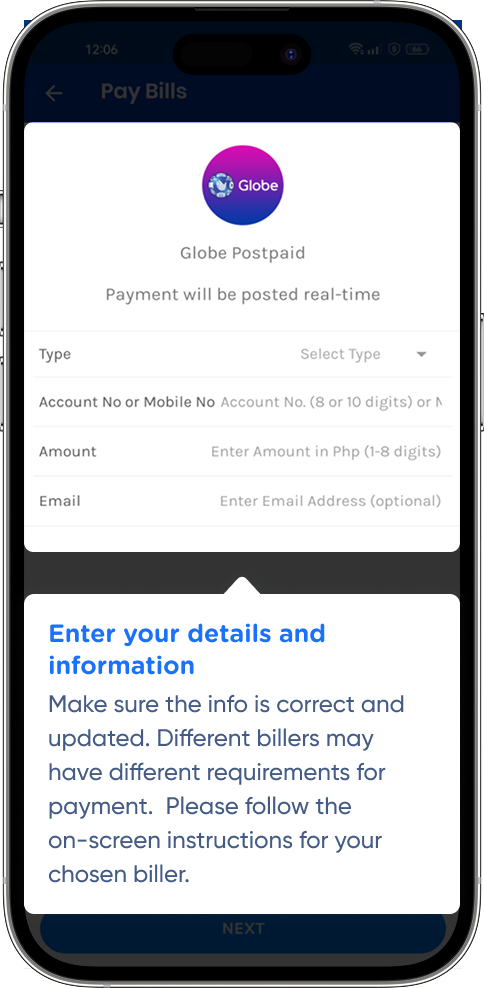
Make sure the info is correct and updated. Different billers may have different requirements for payment.
Please follow the on-screen
instructions for your chosen biller.
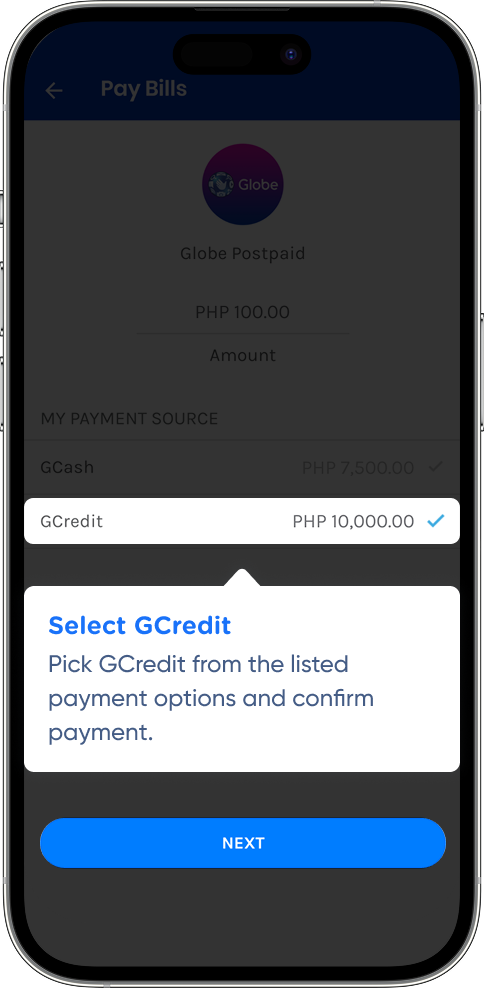
Pick GCredit from the listed payment options and confirm payment.
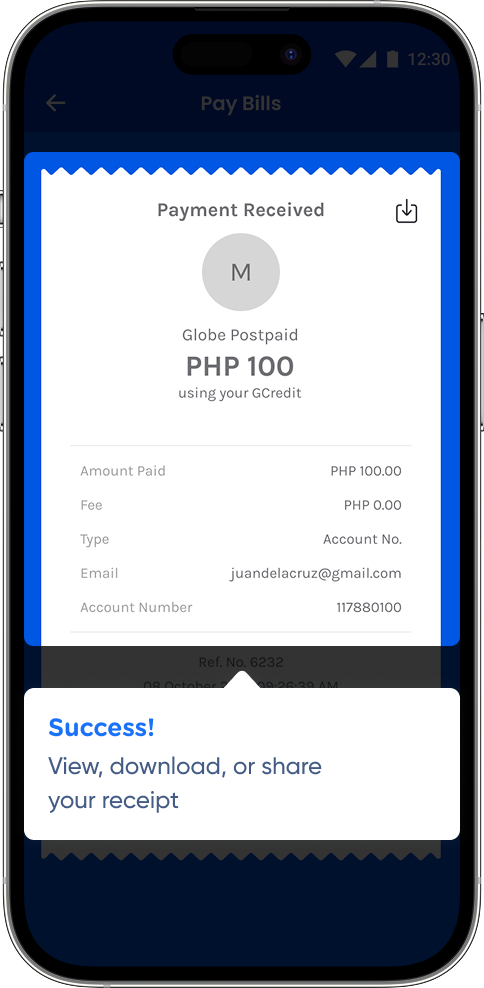
View, download, or share your receipt
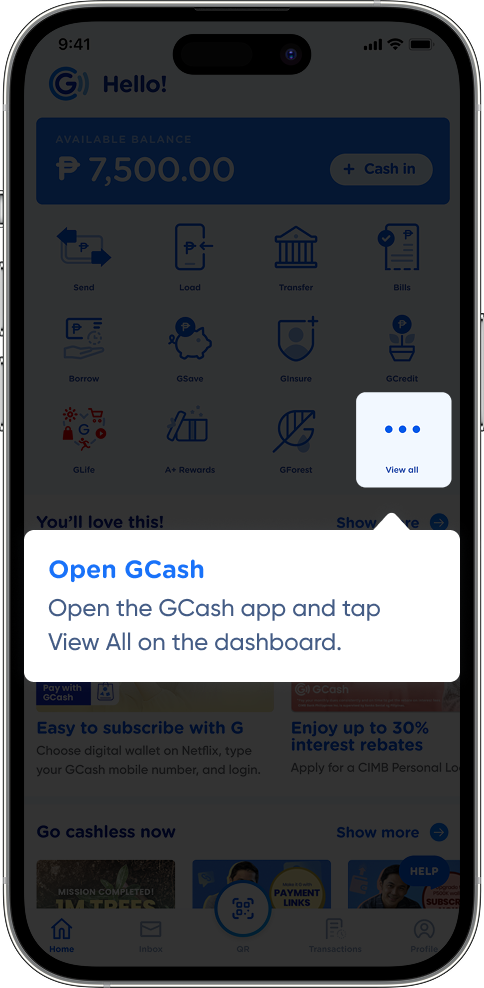
Open the GCash app and tap
View All on the dashboard.
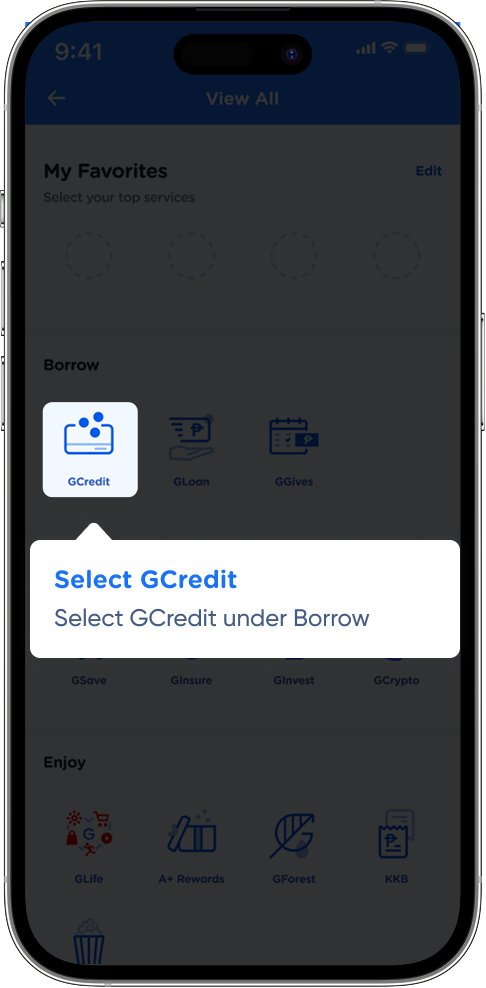
Select GCredit under Borrow.
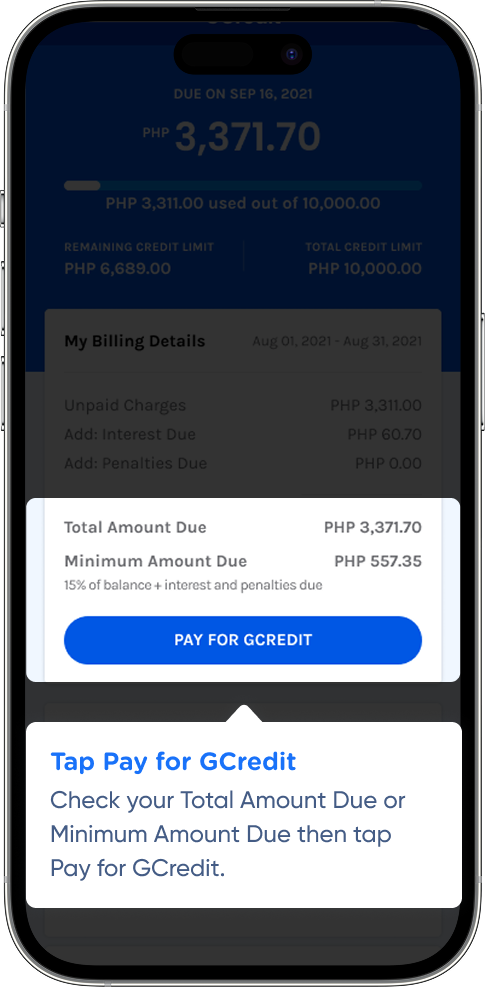
Check your Total Amount Due or Minimum Amount Due then tap Pay for GCredit.
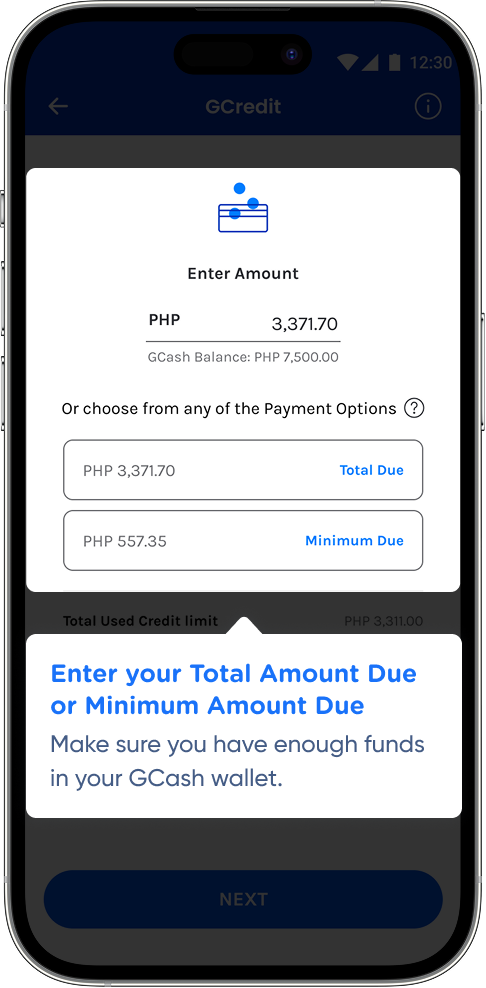
Make sure you have enough funds in your GCash wallet.
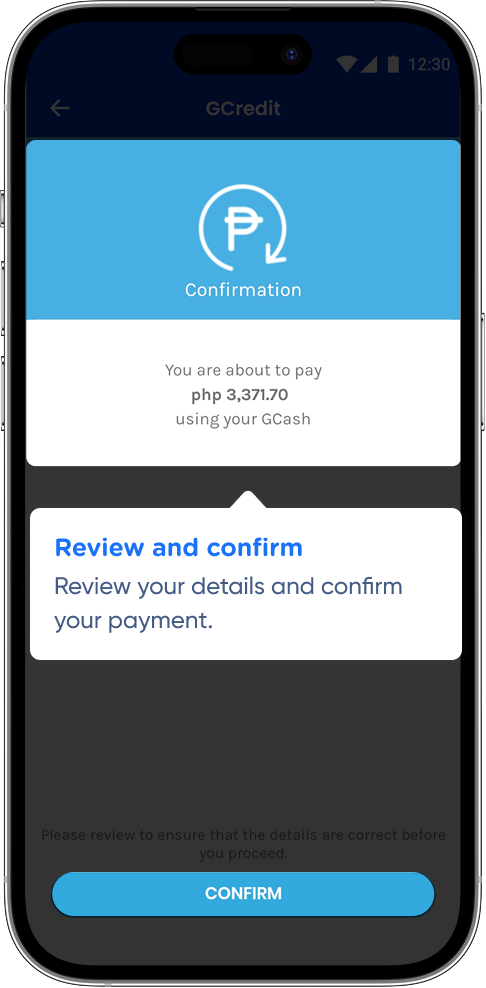
Review your details and confirm your payment.
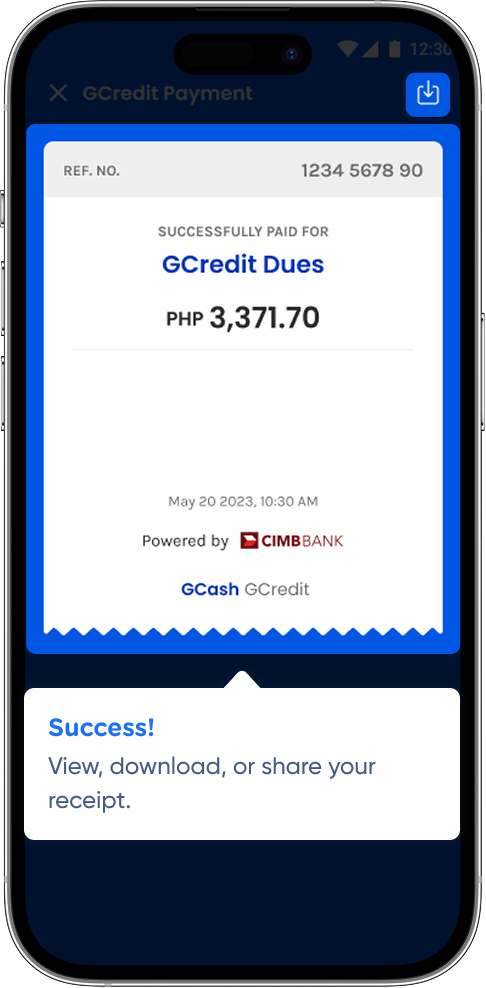
View, download, or share your receipt.